1: (This system is only for technical exchanges, if you need to activate the genuine system, contact Microsoft to purchase
the activation secret key)
Nota: This tutorial applies only to Ezbook 3 SE reload WIN10 systems
2: It is recommended to use a win7 system or above to download y mamáde USB Sistema
3: Need to prepare a 8G or more USB, the proposal is Kingston 3.0 o 2.0.
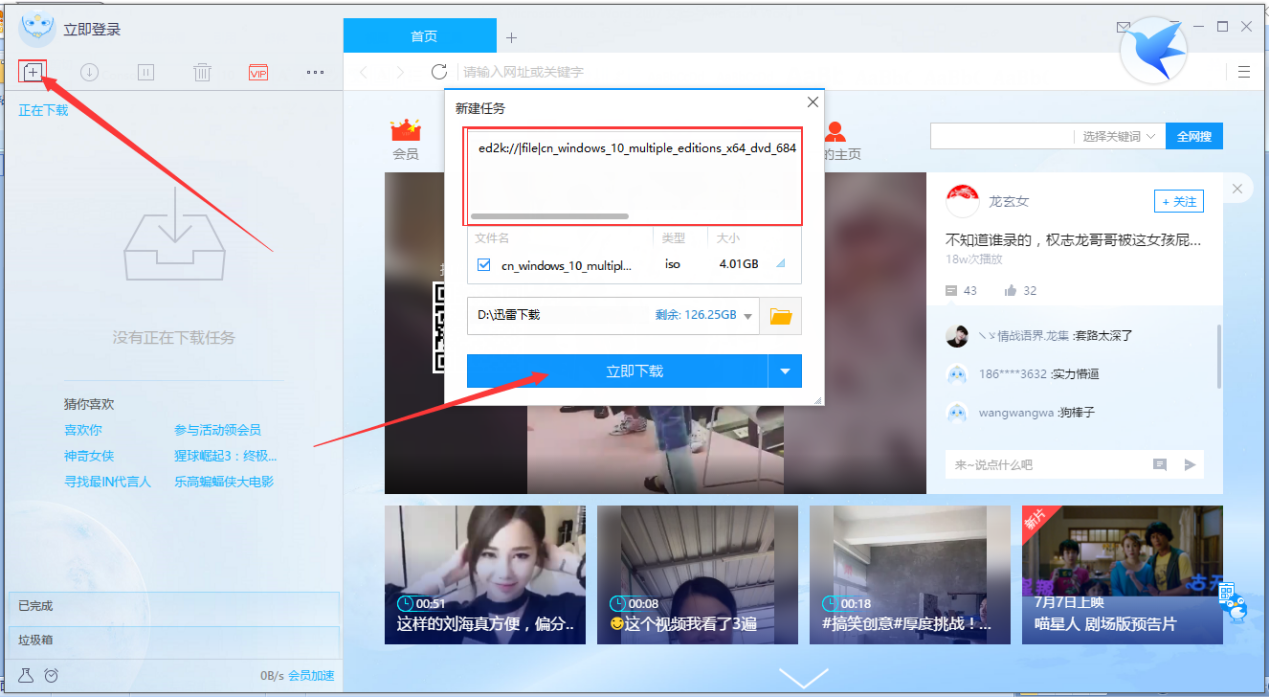
(WIN10 address must be downloaded with Thunder)
ed2k://|archivo|cn_windows_10_multiple_editions_x64_dvd_6848463.iso|4303300608|94FD861E82458005A9CA8E617379856A|/
Copy the above download address to the Thunder new inside to download as below:
Drive download address with Baidu Netdisk:
https://pan.baidu.com/s/1jHPDQvk#list/path=%2F%E4%B8%AD%E6%9F%8F%E8%B5%84%E6%BA%90%2F%E5%8E%9F%E5%8E%82%E9%A9%B1%E5%8A%A8%E5%8C%85&parentPath=%2F%E4%B8%AD%E6%9F%8F%E8%B5%84%E6%BA%90
3.1 Download the system and unzip it.
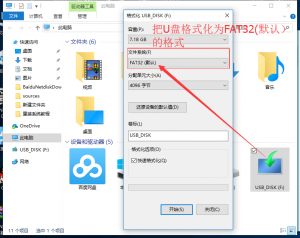
3.2 Format the USB as FAT32, shown as below:
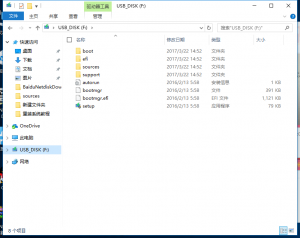
3.3 Copy the zipped sub file into U as shown below:
2.2 finish the processes, operate the USB on the machine. Then steadily press the “F7” button on the keyboard until the display enters the BIOS interface, then selects
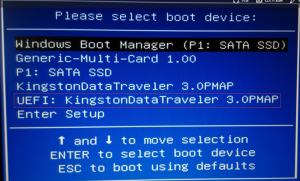
2.3 Select and press ENTER to confirm, then you will go to the following interface
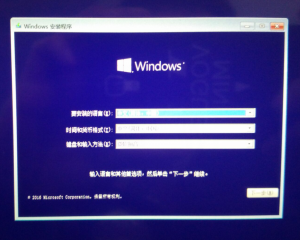
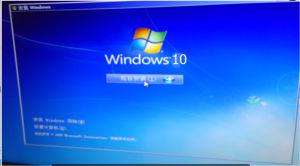
Click “now to install” as below:
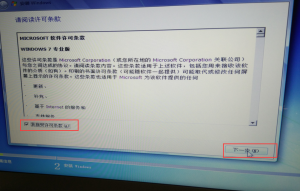
4.3 Choose to accept the license Terms and select Next, as shown:
4.4 select the customization, como se muestra en la figura:
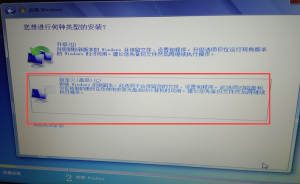
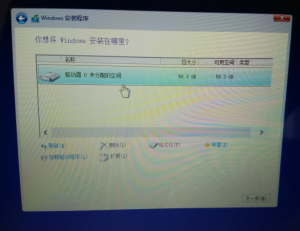
4.5 Select the drive option (avanzado) and delete all partitions, select the first unassigned partition, click New, select the main partition and click Next
2.7 Waiting for installation to complete, the computer will restart, wait for the restart, pull out the USB
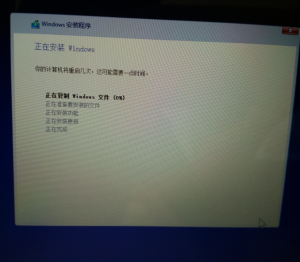
Nota: esperar 20 minutes to see the system interface
- Computer settings
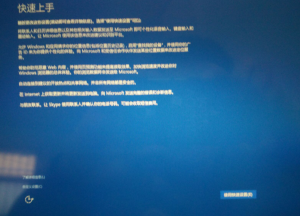
4.1 Waiting for restarting the computer, appear WIN10 interface, click the use of shortcut settings, and optionally enter a user name later click Next, as shown:
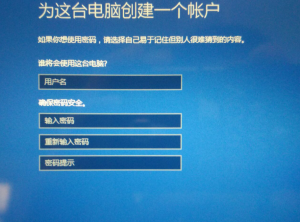
3.2 wait for completion to enter the system
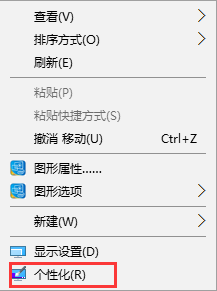
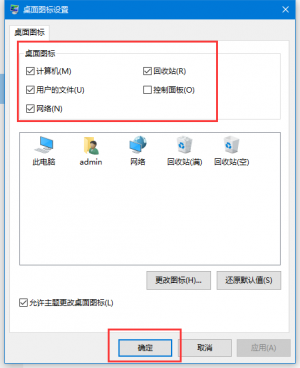
4.3 click your right mouse of the desktop, select personalization
4.4 Select the theme and choose to change the desktop icon settings, como se muestra en la figura:
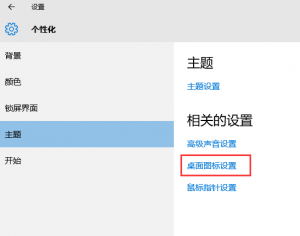
4.5 select all the icons, click OK as shown:
- Instalar controlador
5.1 Download a drive, entonces the decompression el copy to the desktop as shown below to install:
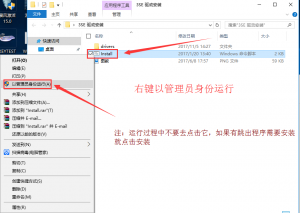
If the installation process has to jump out of the need to install the driver, directly click Install
- After installing all the drivers, you must restart the computer to take effect.
