Hola chicos:
Aquí están las instrucciones sobre cómo utilizar el Tronsmart T1000 with your android device,( teléfono inteligente o tableta).
Tenga en cuenta, si quieres usar la función miracast,please make sure your smartphone or tablet support miracast (samsung device called Allshare cast).
OK, Aquí vamos:
Paso 1
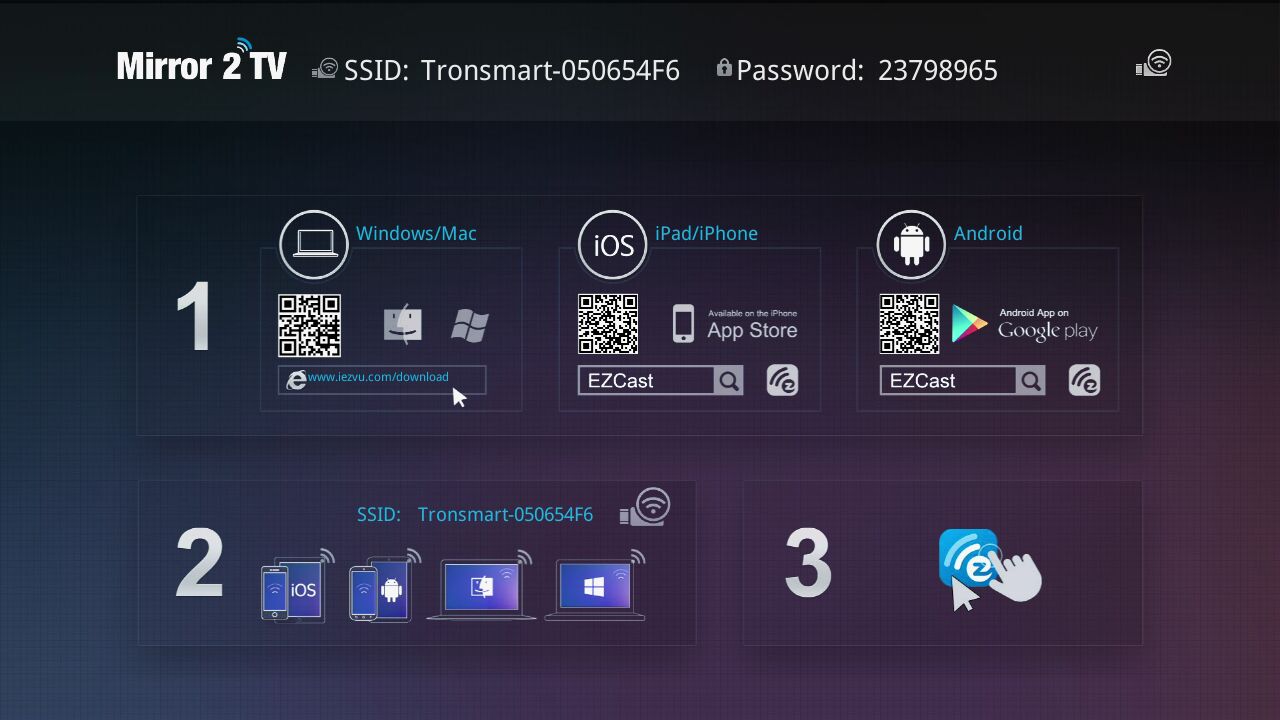
debes conectar tu Tronsmart T1000 con tu PC; y enciéndelo. entonces verás el siguiente menú en tu televisor
Paso 2
Download the EZCast App from Google Play Store, solo busca” EZcast”, and download the app. ahora la última versión es V1.1.88. Después de descargar, solo instala la aplicación.
Paso 3:
Connect your android device wifi to Tronsmart T1000, the Tronsmart T1000 SSID should show on your TV, es como Tronsmart-XXXXXX, and the password is also in your TV screen
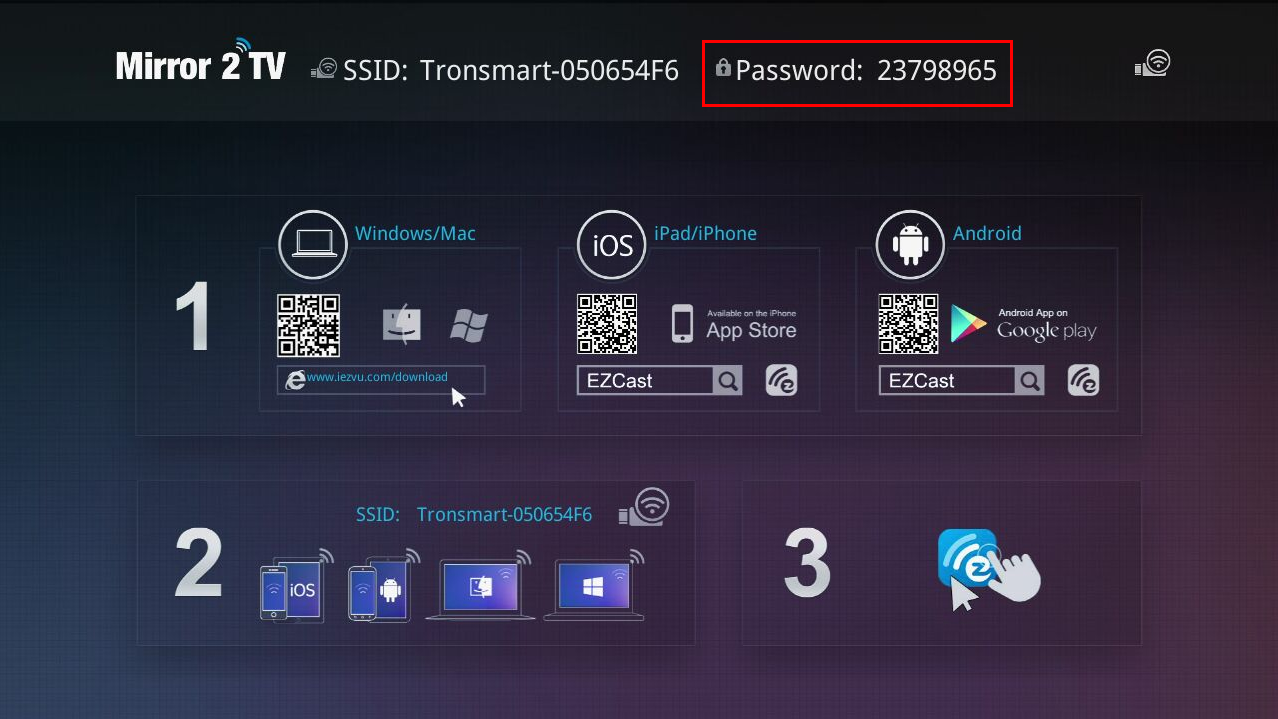
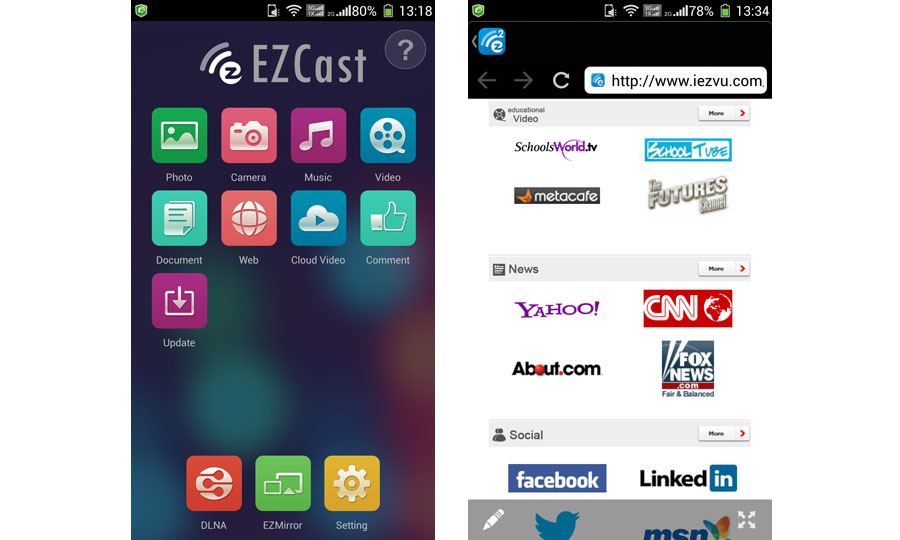
Paso 4, Now you can go to open the EZcast app on your android device, you will see the following menu on your smartphone or tablet:
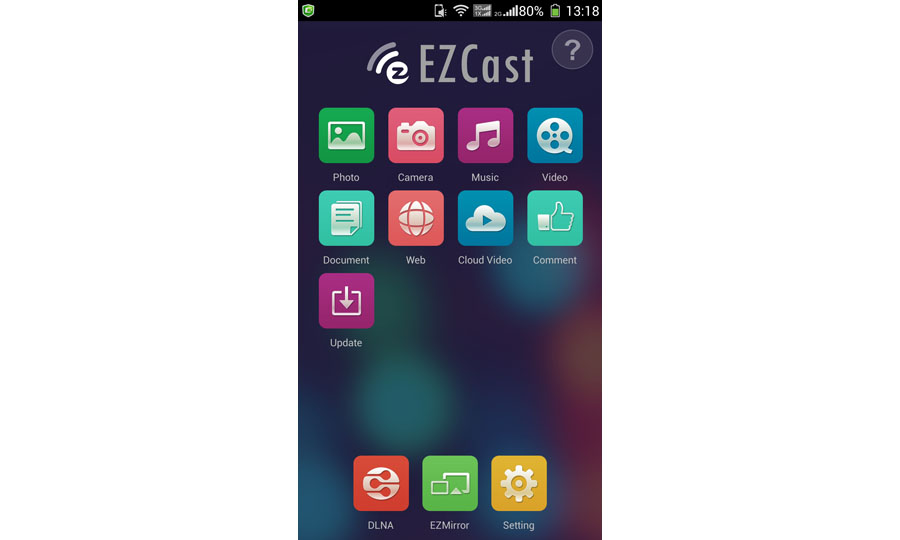
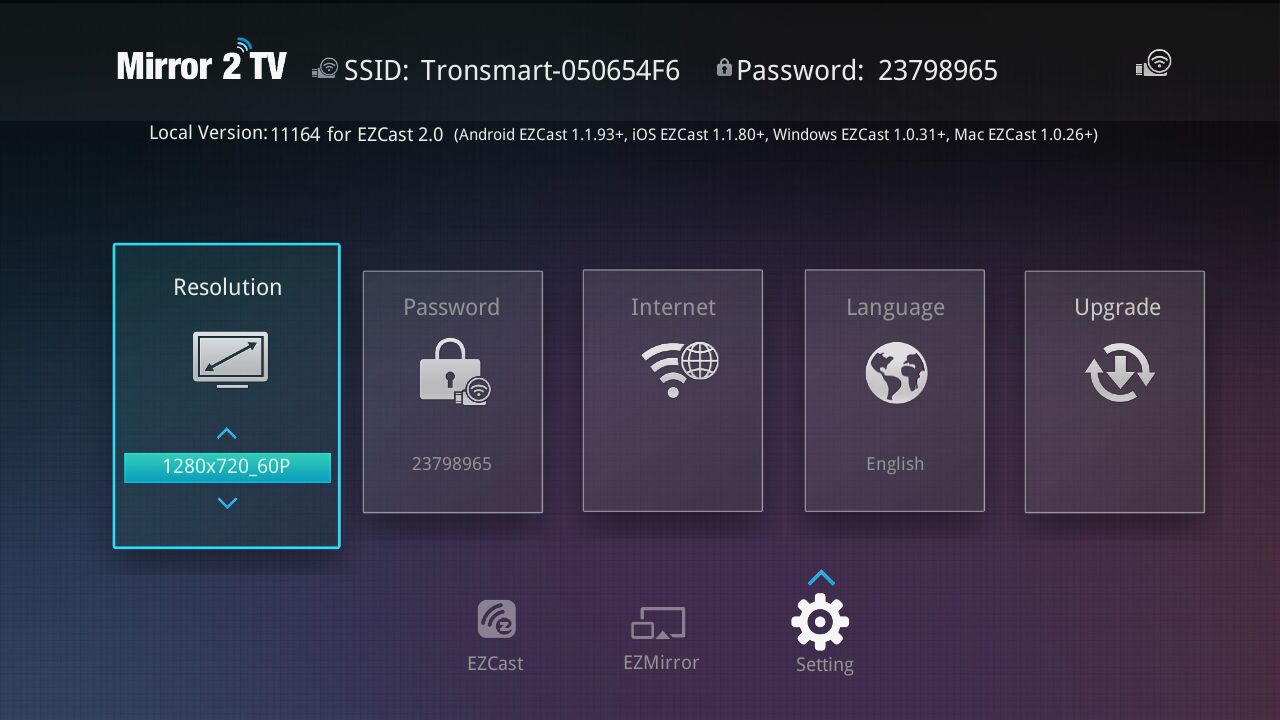
y luego debes hacer clic en "configurar” and use your android smartphone or tablet as remote control for Tronsmart T1000 . entonces , after you click setting, Verás lo siguiente en tu televisor.
al mismo tiempo, you will see the following in your android smartphone or tablet:
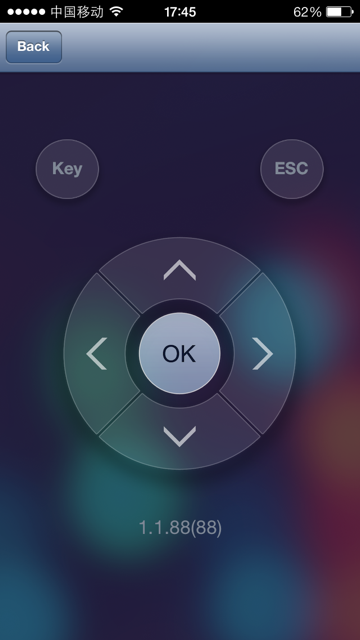
Use the arrow to control the menu on TV, you should make your Tronsmart T1000 to connect to internet, mover el menú a internet, and choose from the AP list, Ingrese la contraseña.
También puedes configurar la resolución de la pantalla., and language setting on this menu, Además, la actualización OTA también está en esta configuración..
Paso 5 : Después de terminar la configuración, you can press the back button on your android device, ahora estás listo para usar.
On Android device, Tronsmart T1000 offer three mode to you:
1 Ezcast Mode;
2 Modo DLNA
3 EZMirror Mode ( it is the miracast mode)
Comprobemos uno por uno:
1 Ezcast Mode. this is a great mode for send your local files including Photos, Música, Vídeos, word, pdf,excel, ppt to your big TV. It has better performance than DLNA when play different video format. Let’s check it now.
Once the connection is successful, EZCast function turns on and you can see several useful features shown in your Android device.
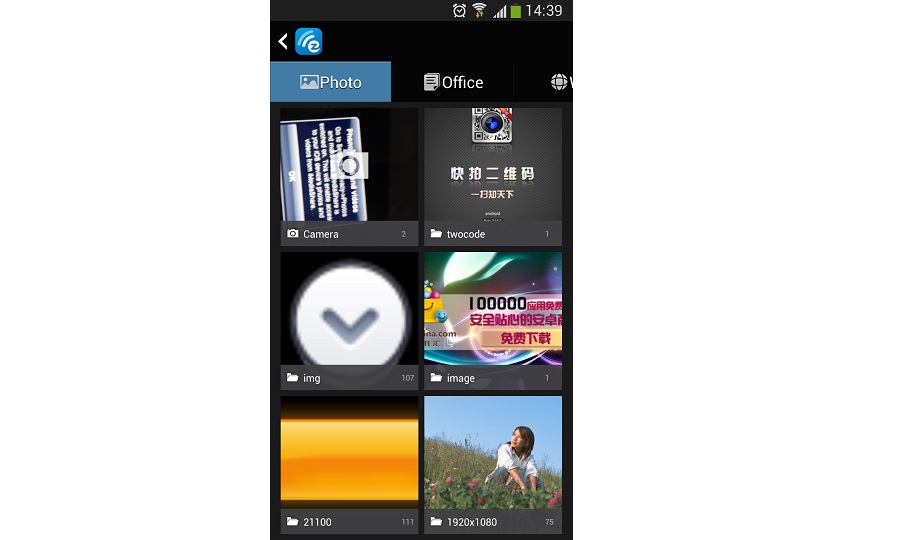
Función de foto, a través de él, you can mirror your photos in your Android device wirelessly to the display(i.e.TV) by clicking the thumbnails.
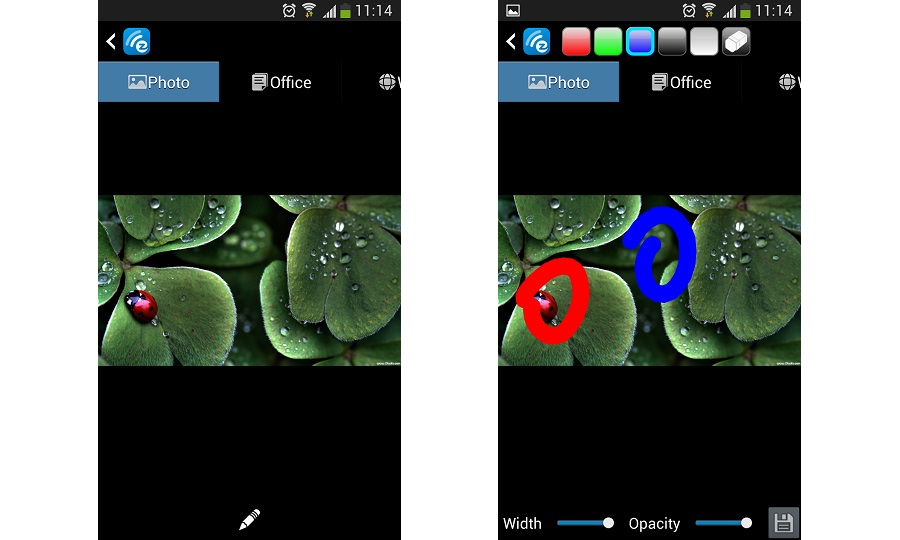
Además, puedes usar el ícono de pintura to sketch the photo and use the save icon
 to save the result.
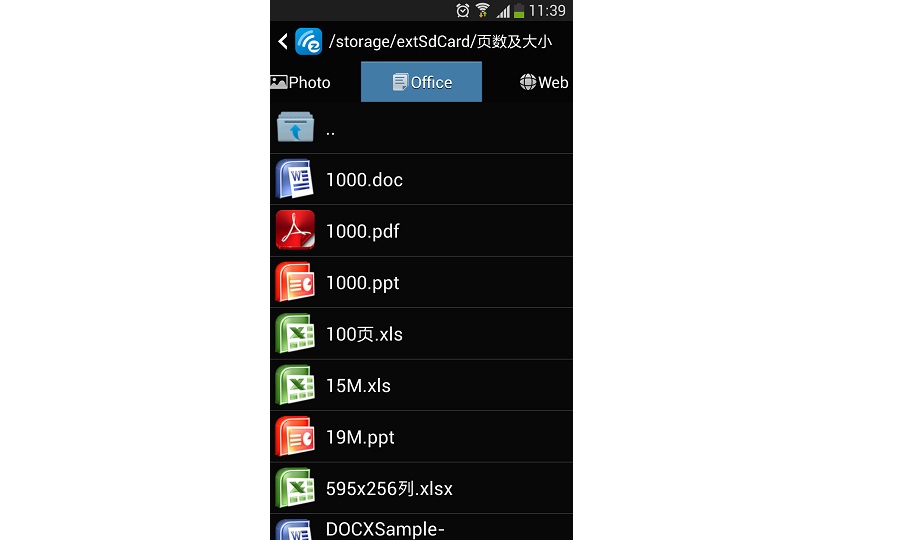
Document,a través de él, you can present the document in your Android device wirelessly onto the display(i.e.TV).EZCast App supports PDF,DOC,PPT,and EXCEL format by direct clicking the document name.The Sketch function also works for document presentation.
Además, puedes usar el ícono de pintura to sketch the photo and use the save icon to save the result.
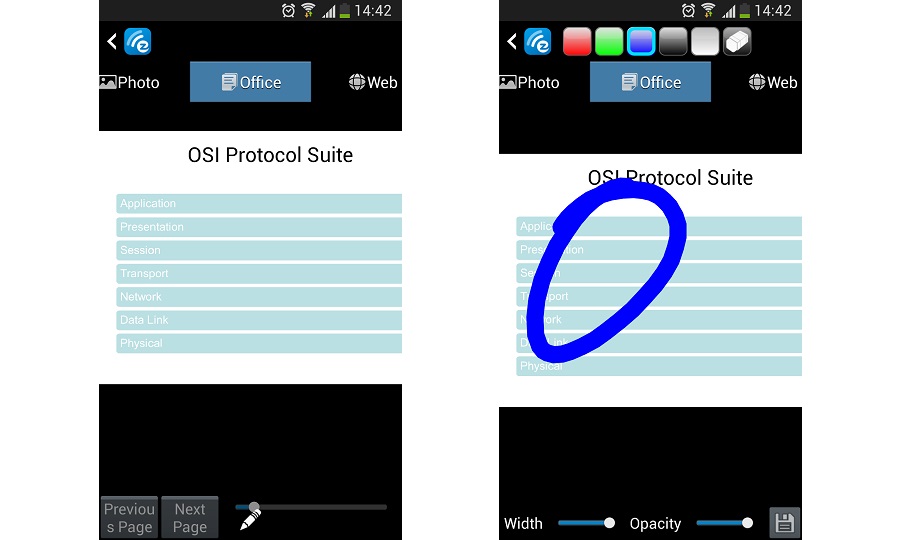
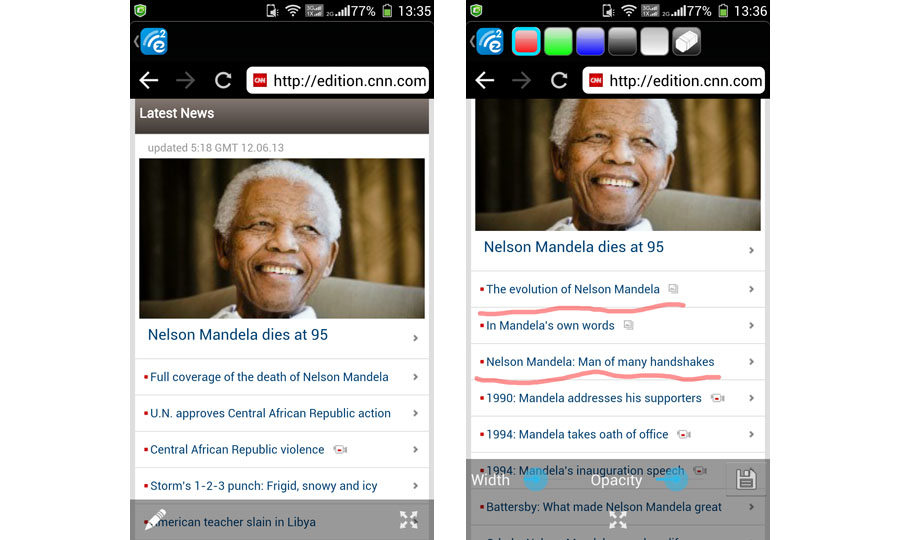
Web, a través de él, you can surf the internet and mirror the web pages onto the display(i.e.TV) wirelessly. You can also fling the news to the display by clicking web news.
You can use the paint to sketch the web news and save.
Cloud Video. You can flinging the video to the display directly by clicking the web video.
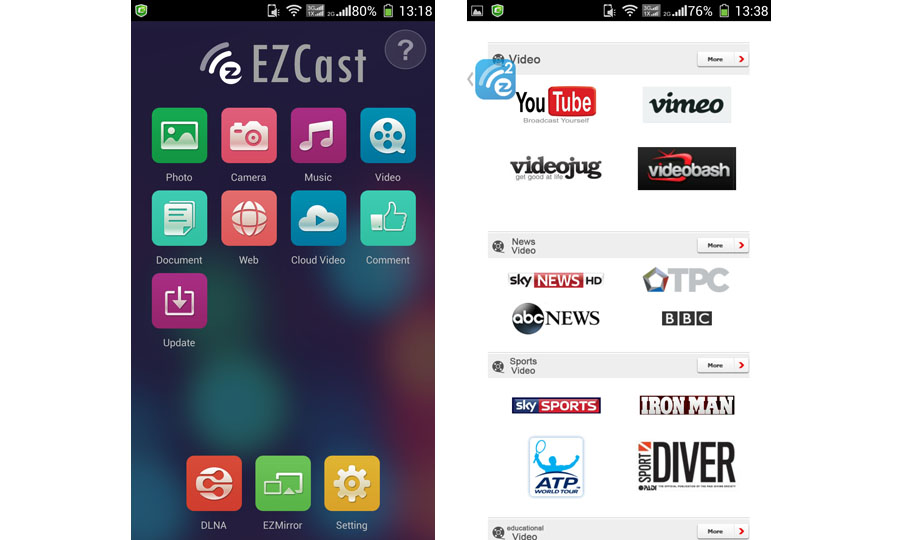
Browse youtube video and display directly onto the display device(i.e.TV).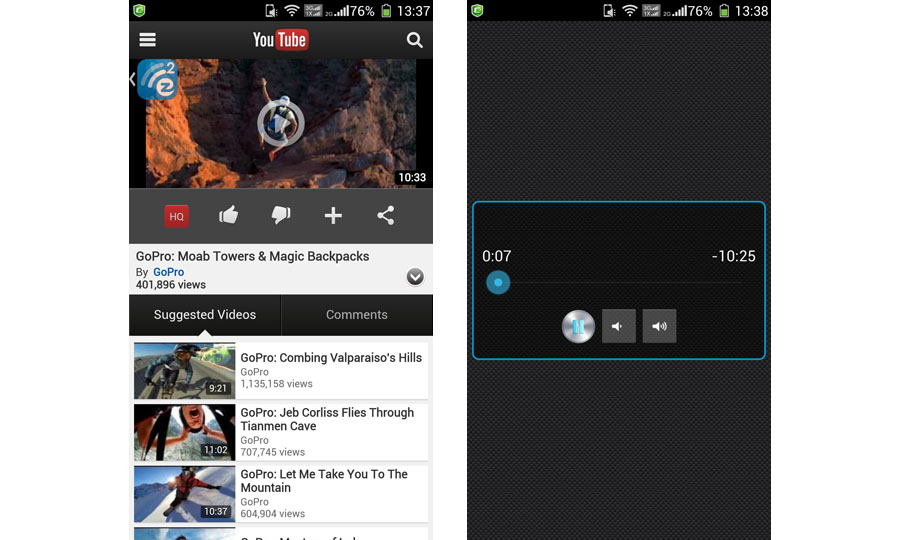
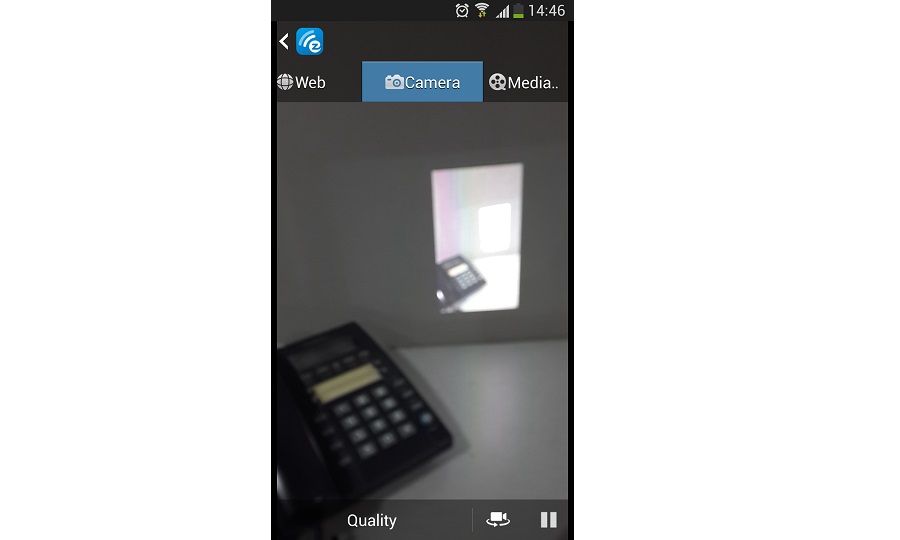
Cámara, a través de él, Puedes reflejar la cámara fotografiando en la pantalla. (es decir. TELEVISOR) and you can change the “Quality” setting by clicking”Quality” and switching the front and back camera by clicking .
.  instantáneas y puede usar el lápiz de dibujo para agregar notas al resultado.
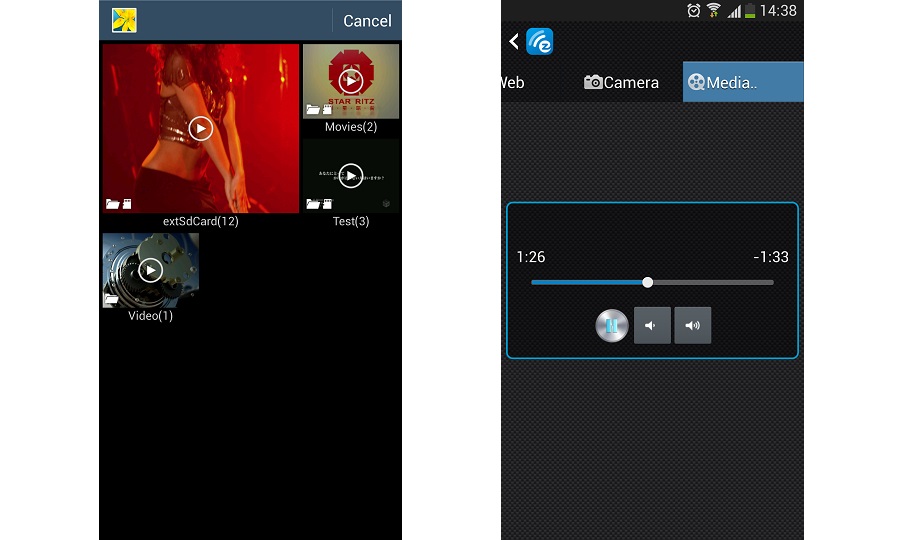
Music/Video Streaming, through them, you can stream your own music and video wirelessly to the display (es decir. TELEVISOR). You can select the music and video via your favorite video browsing App.
Above all is how EZcast Mode working. We recommend to use this mode when you just want to cast local file or videos to TV.
Now let’s check how DLNA mode work.
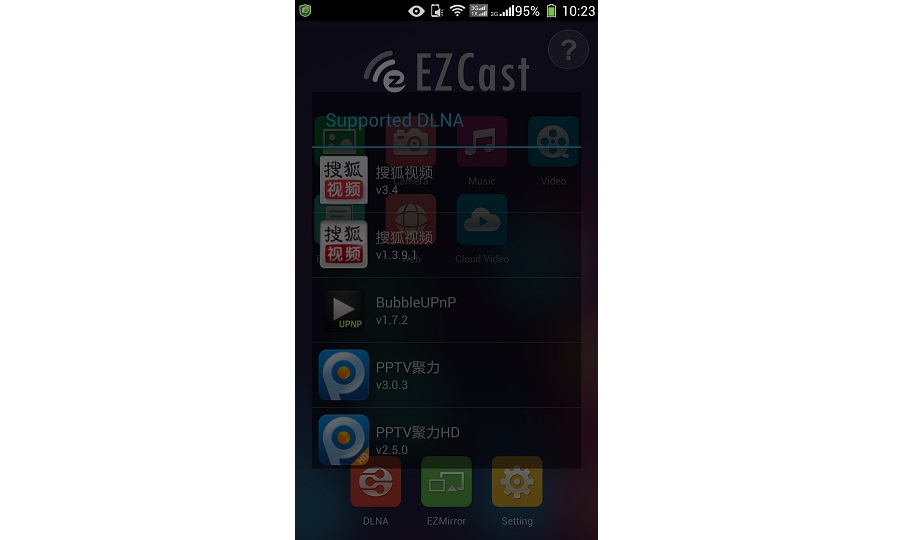
Tronsmart T1000 Miracast Dongle integrates DLNA DMR (Lector de medios digitales) for DLNA Application. When you select DLNA function on EZCast APP, EZCast App will automatically search all DLNA related Apps in your Android device and pop up them as a support list,launch them for selection.
Se observa que debe hacer clic  to submit photo/music/video to EZCast on the selected Apps.
Here are some DLNA apps we recommend to use:
Smart TV Remote Control + DLNA
Shortbeam TV Media Player
PlayTo AppleTV Roku GTV& DLNA
PlayOn TV DLNA/UPNP
Panasonic Music Streaming
mconnect player free
KX Player(Full DLNA)
DlnaPlayer
DK UPnP
Denon Cocoon
ArkMC LITE UPNP
Skifta
BubbleuPnP
SamSung galaxy Link
Al final, let’s check the Miracast Mode, most of the guys get this device for miracast, Sí, mirror everything to your TV is an amazing things, sin embargo, tenemos que decir, the miracast performance is also effected by the surroundings, if there are a lot of 2.4Ghz signal recivers or sender (such as a lot of computers or routers, pcs ) near the Tronsmart 1000, the performance will not good, but if you use in your home, there should be no problem.
Miracast Mode mirrors the screen onto the display (es decir. TELEVISOR). Tronsmart T1000 also integrates Miracast functionality for the smartphone and tablet supporting Miracast. Después de activar “ON” miracast, EZCast App will direct connect Tronsmart T1000 if your Android device is recognized. De lo contrario,Tronsmart T1000 will wait for your Miracast connection for 60 segundos. Si no hay conexión en 60 segundos, EZCast volverá a la configuración wifi normal, eso es, Modo AP con SSID y contraseña.
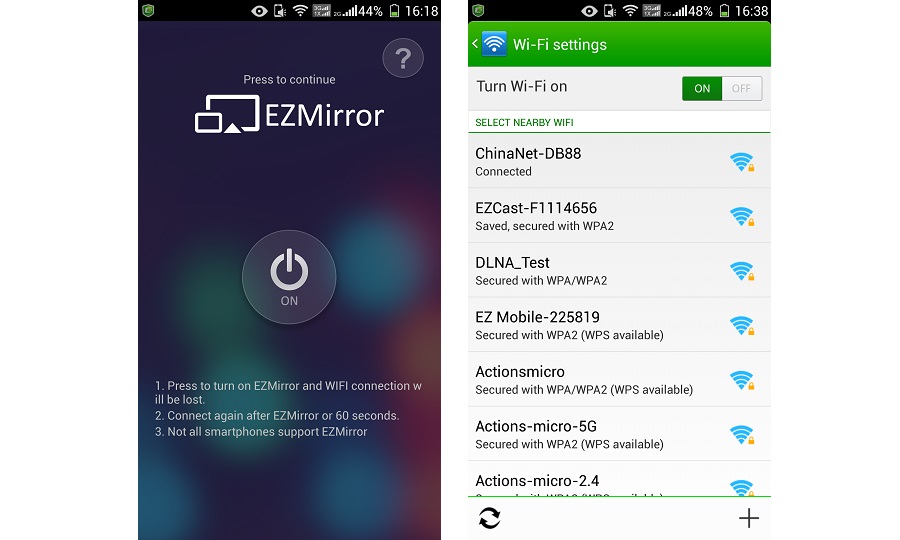
Display device(i.e.TV) will display how to connect miracast.

Usually you can open the miracast function in your android device like this:
GO TO settings, check “Display” menú, and then you will find “Wireless Display”,(this means miracast) choose “on” and make the miracast function work.
We have taken a video to show how miracast working, compruébalo aquí:
http://www.youtube.com/watch?v=PRc7GIIkX_E
So Now we have showed how the Tronsmart T1000 miracast dongle working with your android device.
Compare with Chromecast, the Tronsmart T1000 can mirror the whole screen to TV, and support lots of DLNA apps.
Si tienes alguna pregunta, no dude en contactarnos.
shopping link for Tronsmart T1000 is
eric
compra friki

does this device work with a windows 7 notebook and with a regular (not smart) TV with HDMI in?
SÍ, puede funcionar.
Does thjs work with samsung ativ smart pc?
Of course not! it should work with any android device. but if you want to use the miracast function,please make sure your smartphone support it!
I have updated my T1000 to the last firmware and even changing display resolutions EZMirror doesn’t work with W450 MTK6582. Everything else works just fine except EZMirror, which shows nothing (pantalla negra) on my TV. Is there a way to get EZMirror to work in this smartphone? because it has the Wireless display option to enable.
Hola, my samsung note 3 and the miracast connection keeps dropping out. Did I do anything wrong.? Gracias.
Make sure you are using the stock firmware on samsung NOTE 3.
I just got this today, I could not display anything using EZMirror even when my iNew V3 is connected. Solo una pantalla negra.
I then tried connecting my iNew V3 to my Tronsmart TV Box Wifi display and it mirrors everything ok, so that mean my phone side is working and the T1000 is defective?
Recibí 2 items today from Geekbuying, one is DOA and the other is T1000, I don;t want to say I received a totally dud shipment. So please help me solve it.
I cannot get to work with MotoX Android OS 4.2.2, using Republic Wireless. Everything works except EZmirror. Will not connect for some reason. Could be my phone and the software installed by Republic to get phone to us WiFi for all services when available.
I try to use ezmirror tronsmart with my surface pro under windows8.1. sin embargo, when I switch on the mirror and then try to install it as device it is not found.
is there any good description how to do it.
I just received my t1000 today. The initial screen does NOT look like the one above – it does not list SSID or Password and the ones given in the tiny booklet (which are the same as on the screenshot above) no trabajes. I cannot get Ezcast to find the device no matter what I do (I have tried with Ezcast on 2 separate brands of Android Tablets, an iPhone & a Windows laptop).
Have you done a software upgrade recently and not updated online guides or the booklet? En ese caso, can you please fix them?