- Shipping Company Estimated Delivery Time Shipping Cost
Trusted Shipping Partners:  and more




Highlights
100*100*100mm Printing Size
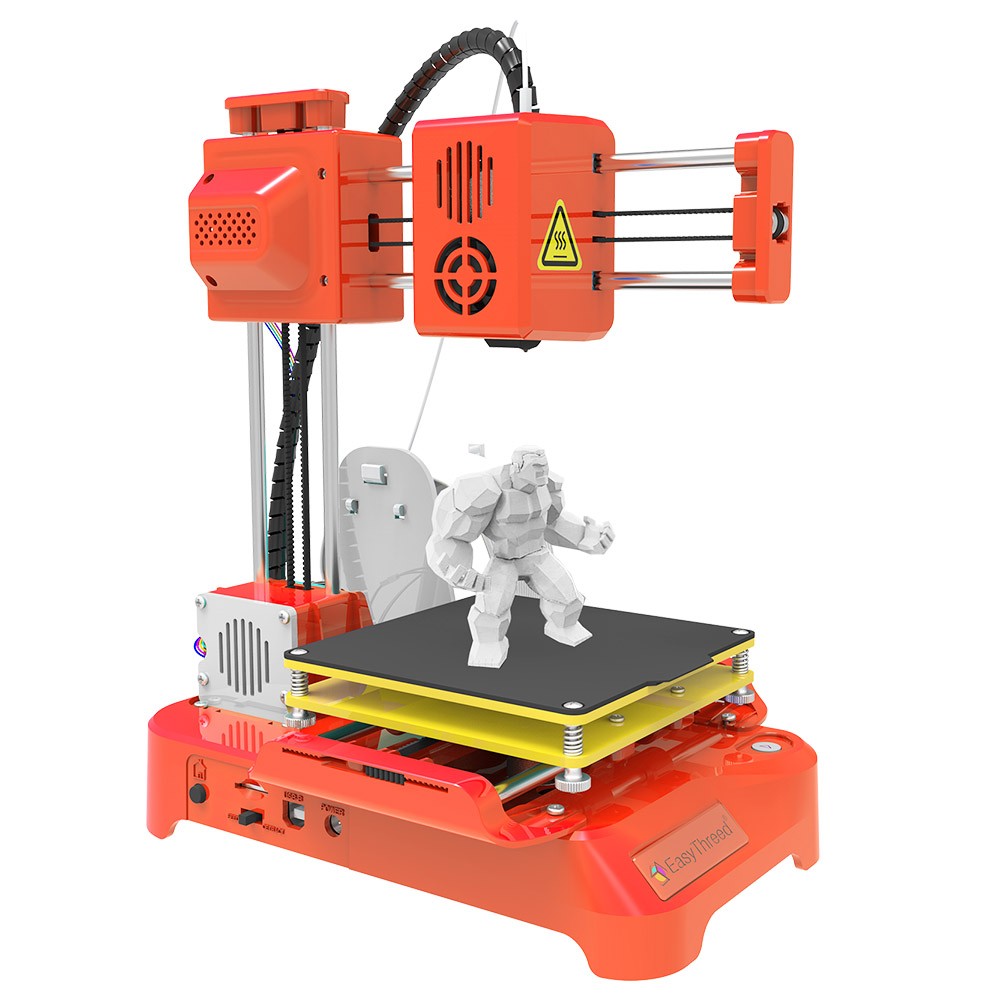
Easythreed K7 toy 3D printer has a 100*100*100mm printing size, which is great for household education and students. It supports one-key printing and has the 1.75mm 0.4mm Nozzle.
3D Printer with Own Slicing Software
Easythreed K7 3D printer is a consumer-grade 3D printer. it comes with its own slicing software (Easyware K7) which was specifically made and has a unique auto-slice function.
Easy to Operate
EasyThreed K7 is light, quiet, and can be controlled by one key. Suitable for household education use or DIY amateurs, and also suitable for students and kids.
Mute Printing
It features high precision, easy to assemble, and has a low noise of less than 60dB, which will not disturb your work or sleep.


Specification
| General | Brand: EasyThreed Type: 3D Printer Model: K7 Color: Orange |
| Specification | Print Technology: FDM Building Size: 100x100x100mm Number of Nozzle: 1 Nozzle Diameter: 0.4mm Layer Thickness: 0.1-0.4mm Printing Filament: PLA Diameter of Filament: 1.75mm Printing Accuracy: 0.1-0.2mm Slicer Software: Easyware K7, CURA, Simplify3D Extruder Temperature: 180-230 Celsius Print Speed: 10-40mm/s Fila Format: Input: .stl / obj; output: .gcode Power: 12V, 30W Building Platform: Removable Support OS: Windows XP/7/8/10 (32 bit/64bit) Print Connectivity: TF Card, USB Cable Industry Certifications: CE, FCC, RoHS, REACH, WEEE, PSE |
| Weight & Size | Product Weight: 1kg Package Weight: 1.8kg Product Size(L x W x H): 75x235x270mm Package Size(L x W x H): 250x250x160mm |
| Package Contents | 1 x 3D Printer 1 x Power Cable 1 x USB Cable 1 x TF Card 1 x Card Reader 1 x Cross Screwdriver 1 x 5M PLA 1.75 Filament (color random) 1 x Filament Holder set 1 x User Manual |
Customer Photos

Customer Videos
Customer Reviews
Questions & Answers
FAQ
Q: Does this come with any filament? What accessories are there? Can I use it directly after buying it? Come with teaching instructions and videos?
A: The printer comes with 5M test filament.
It also comes with a power adaptor, TF card, and card reader.
After unpacking, it can be used immediately.
Inside the SD card comes a manual, operation video, software, software teach video, etc.
Q: What’s kind of format file the printer can print? How does the printer choose the file to print? can use CURA with this printer?
A: The printer only prints the Gcode format file.
The printer will print the latest Gcode file of the SD card.
It can use CURA to slice, CURA software, and CURA set to teach video inside the SD card,
You need to add a printer to CURA first, please watch the CURA set teach video, and do exactly the same steps as the video.
Q: Is the printer easy to assemble? easy to operate?
A: Very easy, it comes with the user's manual, and with an operation video inside the TF card. Slicer software and slicing teach video inside the TF card as well, You need to do exactly the same as the video teach steps.
Q: Why there is no filament coming out from the nozzle when I feed?
A: Feeding failure reason normally :
(1) The front end of the filament is not straight;
(2) You didn’t keep pressing the filament with a little force during the whole process.
Please watch the operation video carefully before using the printer.
Q: Why is the prints not adhesive to the platform?
A: The nozzle is too far away from the platform, You must do leveling before printing, the distance between the nozzle and the platform should be the thickness of a piece of paper. Leveling method process is included in the operation video, And please watch the operation video carefully before starting to use the printer.
Q: What kind of filament can use for this 3d printer? What’s the nozzle diameter?
A: PLA 1.75mm and TPU 1.75mm, TPU filament is a soft material. The nozzle diameter is 0.4mm.
Q: Can I create and print my own designs? Can print any STL model files?
A: Yes. Save your own design in STL format, And then use slicer software to convert STL format to gcode format, the printer can only print gcode format files. The printer comes with the slicer software on the micro SD card. You can also use 3rd party slicer software with this printer.
Note: you must add the printer to the slicer software first, and do exactly the same steps as the slice teach video.
Q: Why my own gcode file can’t print correctly?
A: Make sure you watched the operation video before you start to use the printer. please print the initial rocket. gcode as the first test. If your own gcode can’t print properly, please try to print the initial rocket. gcode again, If the rocket.gcode print is good. This means your own gcode has a problem. If you use a CURA slicer, you need to do exactly the same steps as our cura teach video. You can send us your gcode file for checking.
Q: Do I need a computer for this?
A: Yes, need a computer, when you get the printer, You need to copy all the files on the SD card to the computer. You need to make gcode file on the computer, then copy them to the SD card, insert the SD card into the printer, and print them. Window or MAC are both ok.